Software for the Mac · questions and answers
The practical side of Anchi DAC, before or after you say yes
The Anchi DAC page tells you what it is and who it is for. This page answers the practical questions, whether you are still deciding or have already said yes: how you set it up, what it runs on, what it changes on your Mac, and how you switch it off again. If your question is missing, ask by email.
You set it up in about three minutes
You install two things: Anchi DAC, and one free helper called BlackHole. BlackHole is a small, open‑source piece of software that hands your Mac’s sound to Anchi DAC instead of straight to your DAC. Then you tell Anchi DAC where the music goes.
- 1. You put Anchi DAC in Applications and open it. The link to the download arrives in the reply to your beta email. Open the disk image you downloaded, drag Anchi DAC into the Applications folder, and open it from there. Look for the 反 mark in your Mac’s menu bar, near the clock.
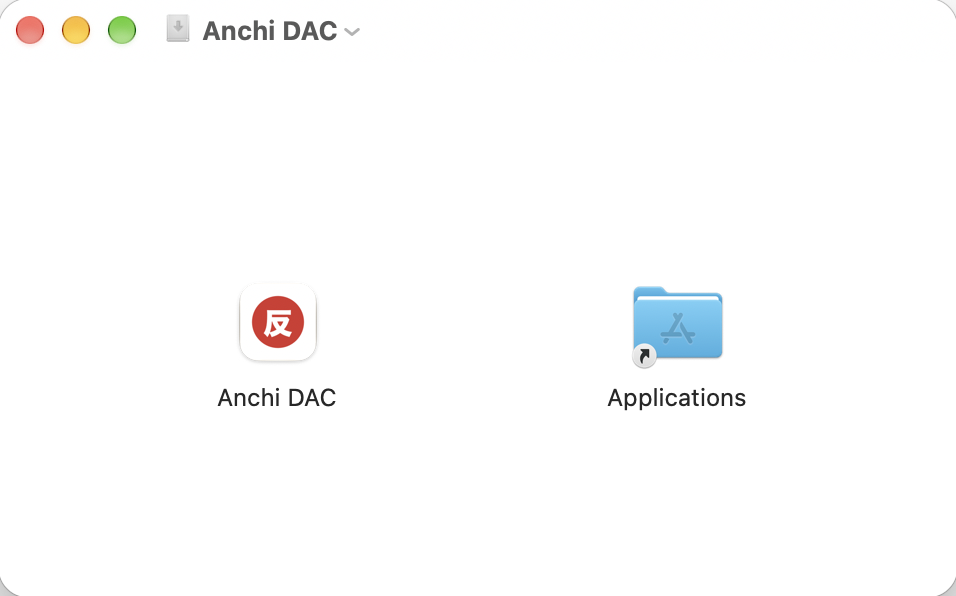
Drag Anchi DAC into Applications. 
Look for the 反 mark in your Mac’s menu bar, near the clock. - 2. You allow Microphone access when your Mac asks. Your Mac uses that permission so Anchi DAC can read the sound that BlackHole hands over. It never listens to a microphone in your room.
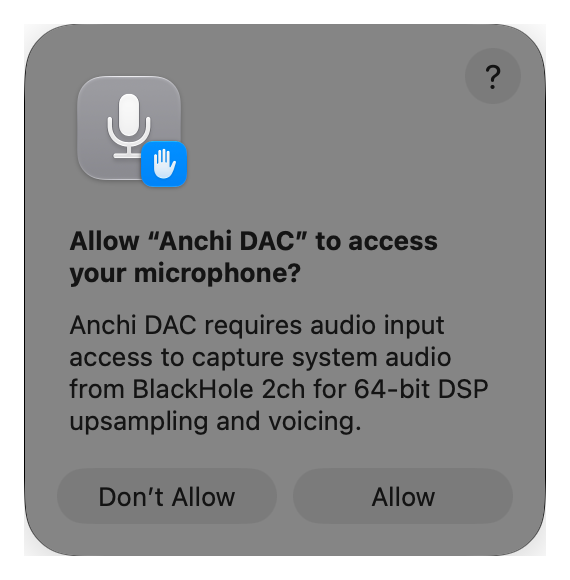
Click Allow so Anchi DAC can read audio from BlackHole. - 3. You install BlackHole. Click Examine inside the Anchi DAC window and then Install, or get BlackHole 2ch from existential.audio/blackhole.
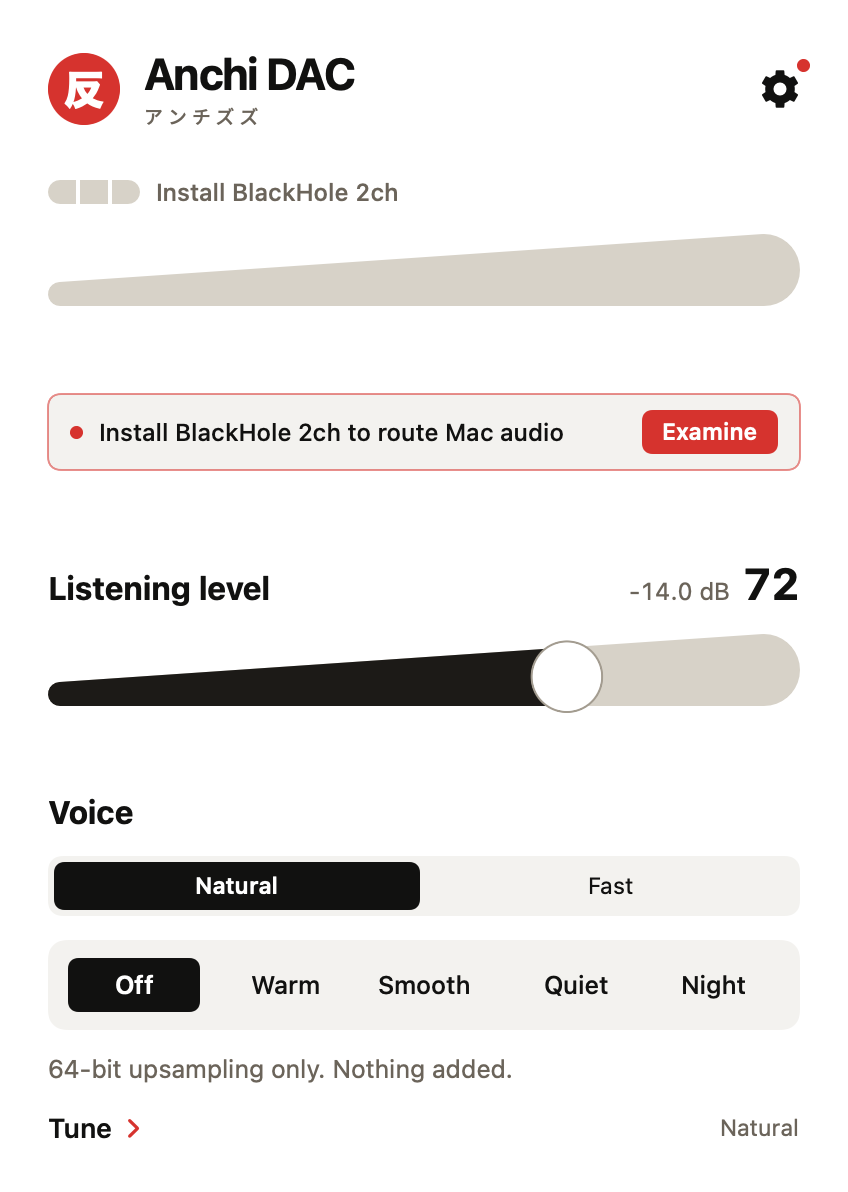
Before BlackHole is installed: click Examine. 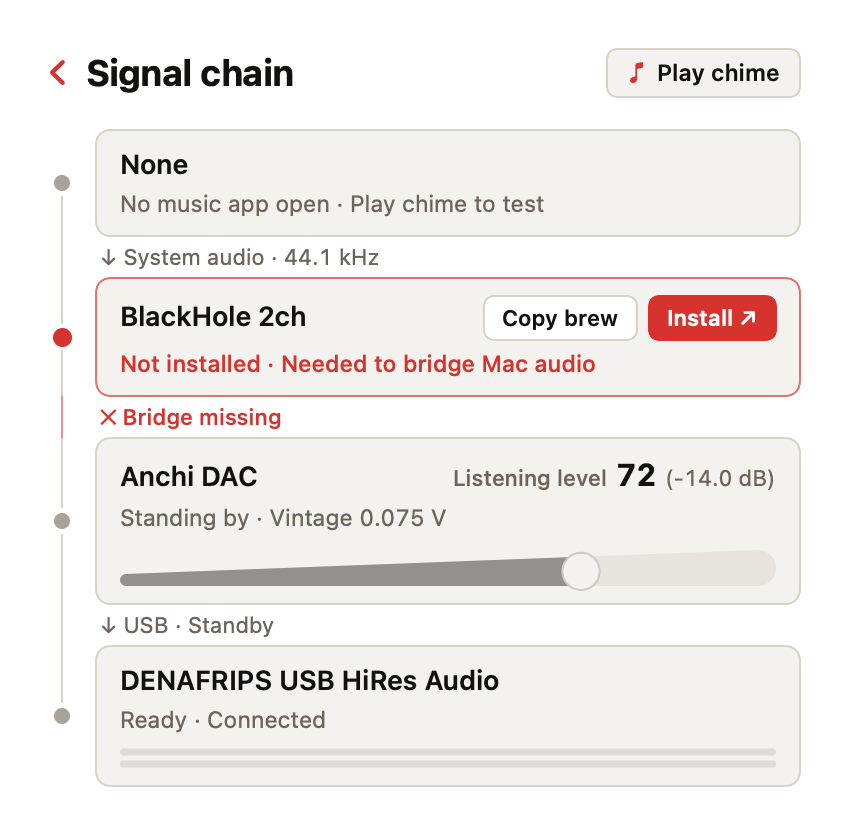
Click Install (or Copy brew) to install BlackHole 2ch. - 4. You pick where the music goes. Click 反 in the menu bar, then the gear, to open Settings. Under Destination, choose your DAC or your headphones.
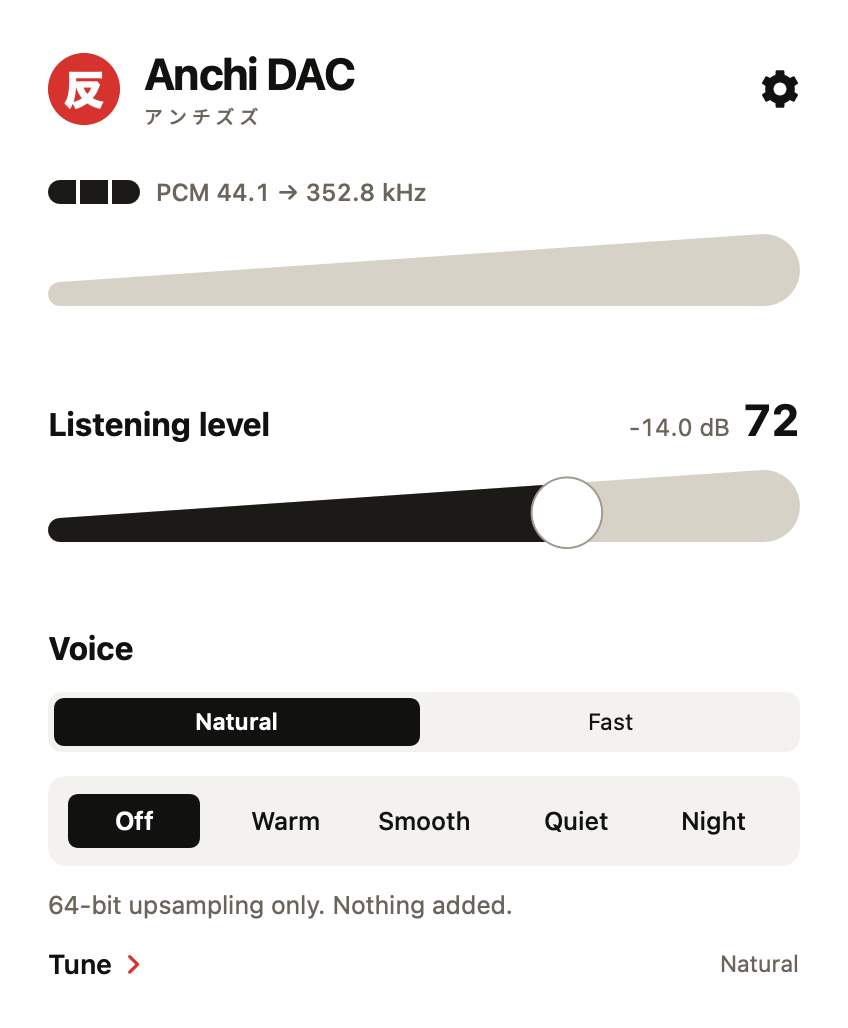
Click the gear in the top right to open Settings. 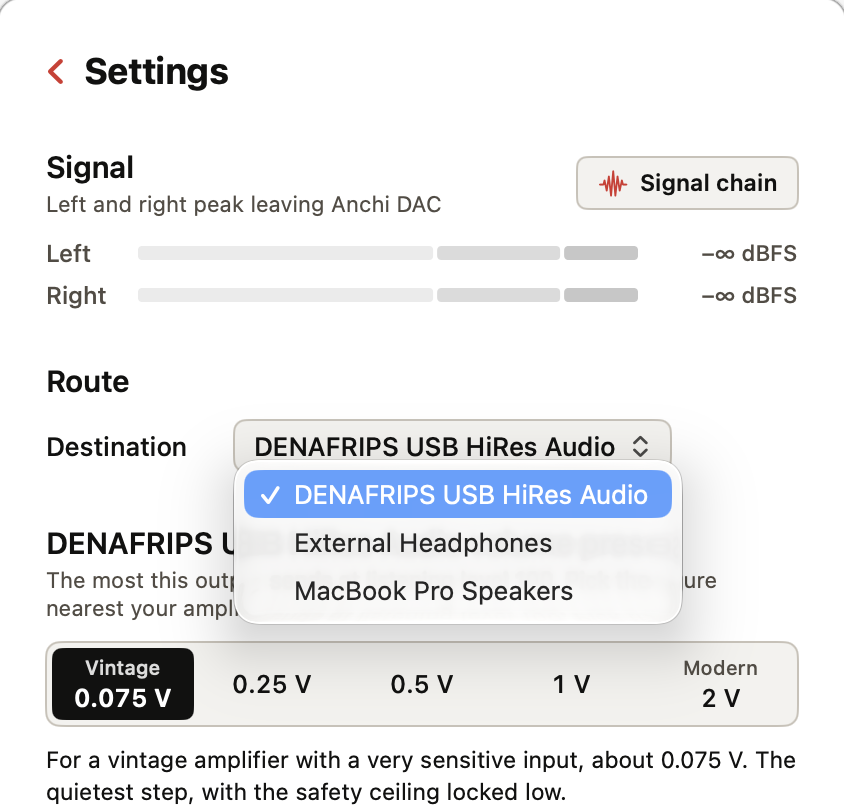
Under Destination, choose your DAC or your headphones. - 5. You set the top volume once. Every new output starts on the quietest step, Vintage 0.075 V, so a sensitive old amplifier is never surprised. For modern gear, powered loudspeakers or headphones, step up to 0.5 V, 1 V or Modern 2 V.
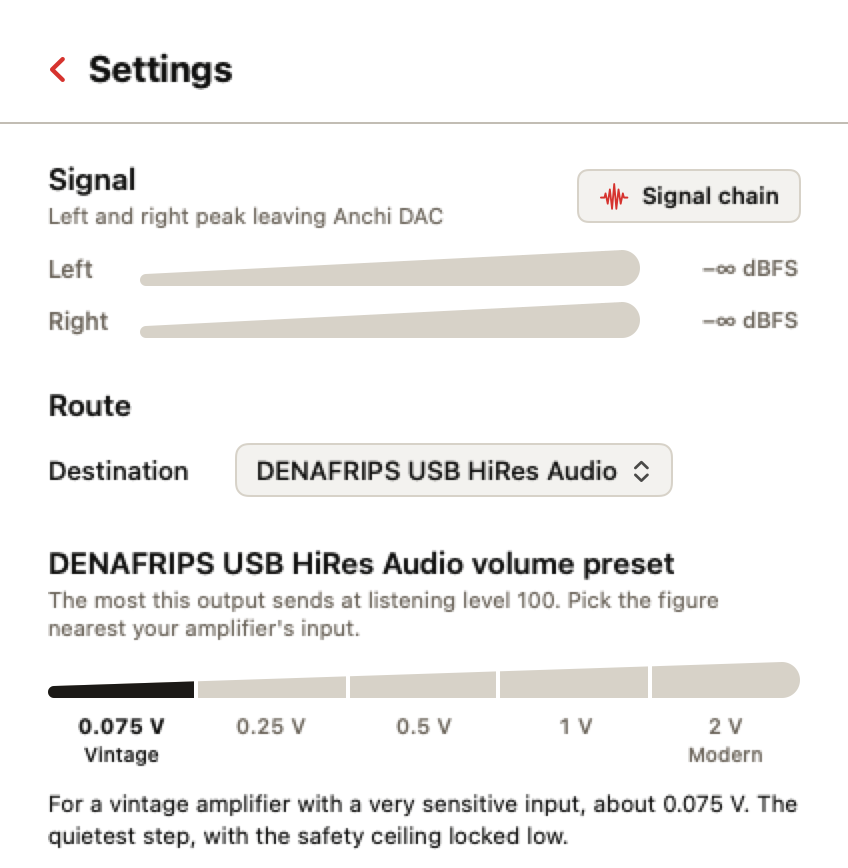
Every new output starts on Vintage 0.075 V. - 6. You press play in the app you already use. Qobuz, Apple Music, Spotify, Tidal or Roon. Then you try the voices.
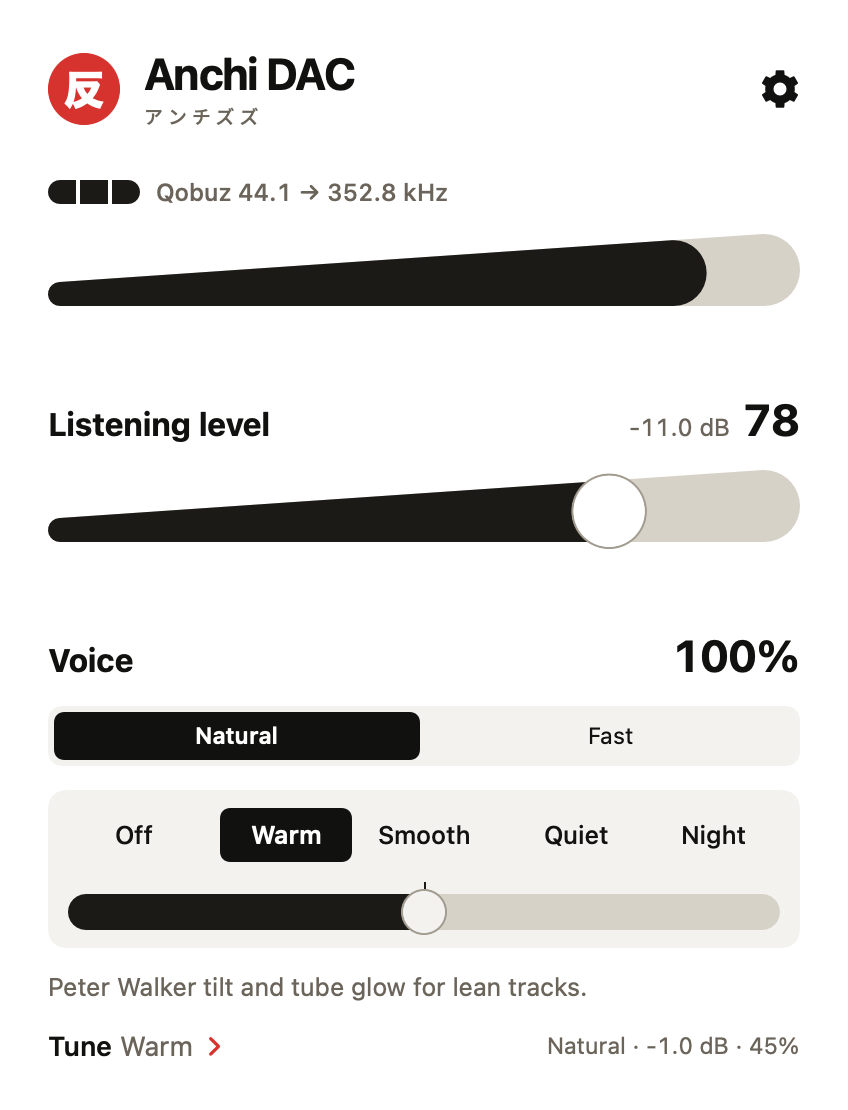
Music playing through Anchi DAC with a voice chosen.
You need a recent Mac and a wire to your music system
- Which Macs does it run on? Any Mac with Apple Silicon, which means an M1 chip or newer, running macOS 13 Ventura or newer. It does not run on a Mac with an Intel chip.
- Which DACs does it suit? It suits the ones you plug in with a USB cable, whether resistor‑ladder (R2R) or delta‑sigma (ΔΣ), as well as headphone amplifiers and your Mac’s own headphone socket. A DAC (digital‑to‑analog converter) turns digital music into the signal your amplifier plays.
- What about a HomePod or an Apple TV? The remote part works with both: you change the volume with the dial of your Anchi Volume Remote.
- Does your music app take over your DAC? Not if you turn off Exclusive Mode. If Qobuz, Tidal or Roon is set to Exclusive Mode or Integer Mode, the music never reaches Anchi DAC. Leave your music app on System Output and let Anchi DAC feed your DAC.
- Should I turn on NOS? Yes. Some resistor‑ladder DACs have a button marked OS / NOS, for oversampling or no oversampling. Choose NOS, so the music is filtered once, by Anchi DAC, and not twice.
- Does it support DSD? No, on purpose. DSD (Direct Stream Digital) is the one‑bit format of Super Audio CDs, and the subject of some of hi‑fi’s longest arguments. Every streaming service sends PCM, so turning your stream into DSD on your Mac adds nothing the recording did not have. Most DSD albums were themselves mixed in PCM at 352.8 kHz, a rate Anchi DAC already works at. Sending DSD out of your Mac would also take away your top volume setting, your voices and the dial of your Anchi Volume Remote, and shut out your headphones. If you own DSD files, pass them to Anchi DAC via Roon or Audirvāna: those apps send the music as high‑resolution PCM.
Anchi DAC takes 40 ms to work
Anchi DAC needs a moment to do its work: about 40 milliseconds, one twenty‑fifth of a second. Every sound that passes through it arrives that much later.
- Music: you never notice. The song starts a blink after you press play, and nothing else changes.
- Video calls: it steps aside for them.
- Playing an instrument through your Mac: use something else. A guitarist or singer who listens to themselves while recording needs a delay under 3 ms, and Anchi DAC is for listening.
The rest of your Mac’s sounds mostly carry on as before
- Alert chimes stay on your Mac’s own loudspeakers. Your hi‑fi never plays the sound of an arriving email at concert volume.
- AirPods: when you switch your Mac’s sound to AirPods in Control Center, Anchi DAC steps aside. Click Resume in the Anchi DAC window, or take your AirPods off, to bring it back.
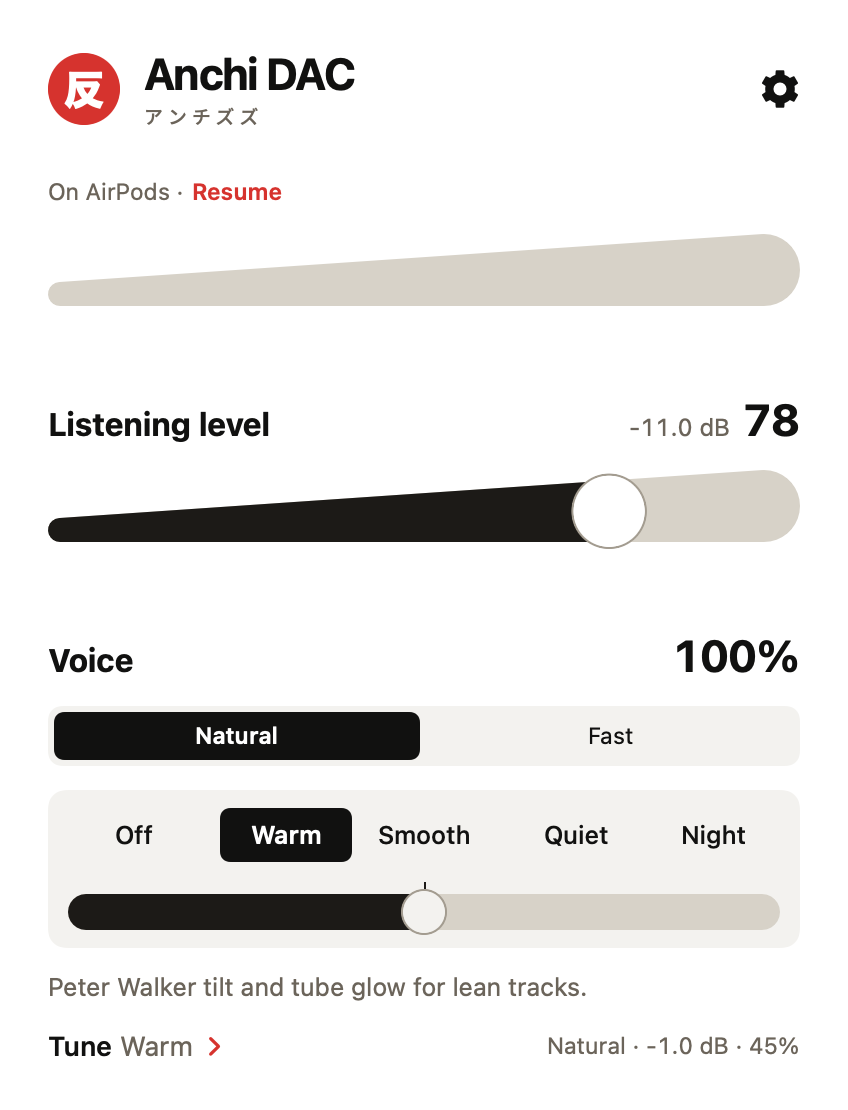
Anchi DAC steps aside while AirPods are active; click Resume to bring it back.
A word of caution: Anchi DAC is new, and it has not been tested with every combination of music source and output. Be careful when you try a new one.
You switch it off with one click, and your Mac goes back to how it was
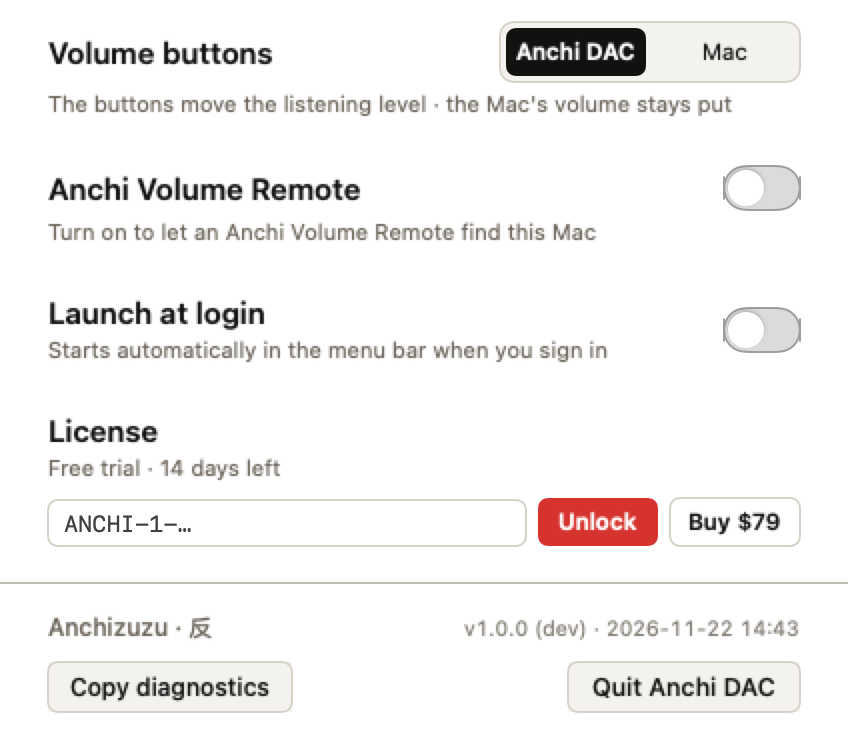
Open Settings in Anchi DAC and click Quit Anchi DAC at the bottom. Your Mac restores your usual sound output. If it ever does not, open Sound in System Settings and choose your usual output yourself.
You pay once, and one license covers every Mac you own
- What does it cost? Nothing during the beta. After the beta, a license costs $79, paid once. You never pay a subscription.
- What do beta testers pay when licenses go on sale? Beta testers get the founder’s price: $39, paid once, where everyone else pays $79.
- How many Macs? Every Apple Silicon Mac you own and use yourself: the Mac mini by the hi‑fi, your laptop and your desk Mac, all under one license.
- What if you do not love it? You get a full refund. Ask by email within 30 days of buying.
- Does the license check up on you? No. It checks your license on your own Mac. You make no account, and nothing about your listening leaves your Mac.
Every version 1 update is yours
Your license includes every update to version 1 of Anchi DAC: new filters, new voices, support for more devices, and fixes.
The other questions people ask
- Does it need the internet, or an account? No. You make no account, and it checks your license on your own Mac. Your music app still needs the internet to stream, but Anchi DAC sends nothing about you or your music anywhere.
- Can it ever blast my amplifier or my ears? It is built not to. But always use caution! Every new output starts on the quietest step, Vintage 0.075 V, and it turns your listening level down whenever you choose a louder step. It cannot reach the volume control on your amplifier, though, so turn your amplifier down by hand before you change a cable, an output or a step.
- Does it slow my Mac or drain my laptop’s battery? No. Its arithmetic puts a negligible load on an Apple Silicon chip, and it never wakes the fan. Its effect on a laptop’s battery is not well tested yet, so your feedback helps.
- Why does it ask for Accessibility access? So your Mac’s volume and mute keys work with it. Your Mac lets an app answer those keys only after you grant Accessibility access. Grant it: the keys are a real help. You can change your mind later in Settings, under Volume buttons.
- How do I know it is working? The window shows the rate coming in and the rate going out, for example 44.1 to 352.8 kHz. Then pick a voice and push the slider all the way left, then all the way right, and you hear the difference.
- Who makes BlackHole, and is it safe? Devin Roth and Existential Audio make it. It is free and open source, which means anyone can read its code, and musicians and broadcast engineers use it to pass sound from one app to another.
- What does “Off” do? It turns the voices off and leaves high‑fidelity upsampling only, with nothing added. It is the clear, transparent setting, and a great one to leave it on.
- Does it keep separate settings for my headphones and my hi‑fi? Yes. It remembers the top volume step and the voice for each Destination, so your headphones and your hi‑fi each keep their own.
- Does it work with the Anchi Volume Remote? Yes. The dial of your Anchi Volume Remote changes the volume of Anchi DAC.
- Does it correct my room, or have an equalizer? It has simple Tone and Room controls, and no more, on purpose. It leaves out the 31‑band equalizers and the advanced room correction of other players.
- Does it open by itself when my Mac starts? Yes, if you ask it to: one switch in Settings decides.
- Does it work over AirPlay, or in several rooms? As far as testing shows, yes: loudspeakers grouped over AirPlay play together.
- Is there a version for Windows or iPhone? No. It runs on the Mac only.
Still stuck? Copy the diagnostics and ask
Open Settings in Anchi DAC and click Copy diagnostics. That copies your version, your Mac model and your sound setup, and nothing personal. Paste it into an email to help@anchizuzu.com and say what you heard. Then go back to listening, preferably with someone else in the room.